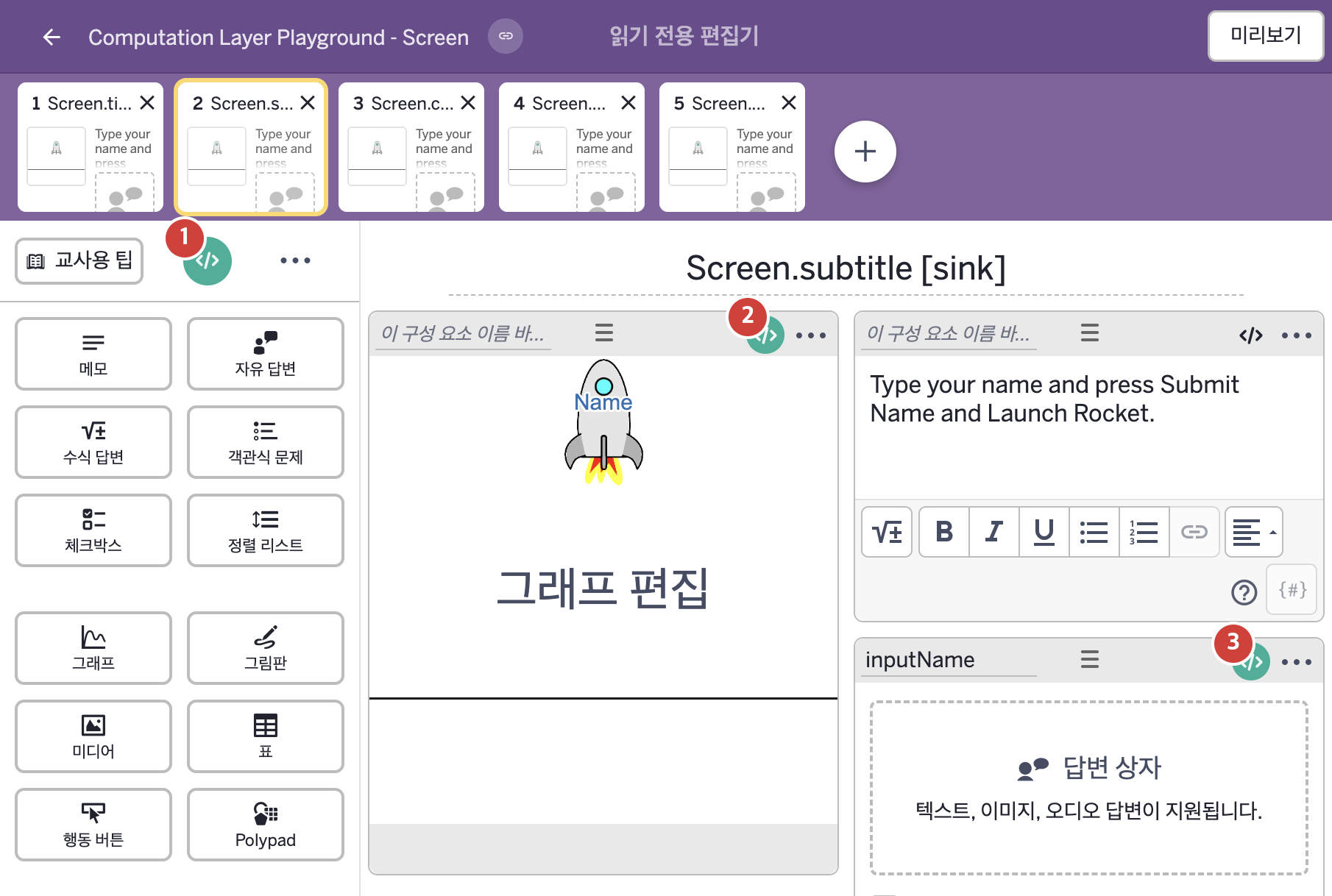
코드 안의 회색 줄은 원문 영어 주석이고, 파란 줄은 그 영어 주석의 번역이며, 연분홍 줄은 코드가 하는 일의 설명이다.
| 번호 | 이름 | 종류 | CL 코드 원문, 번역, 설명 |
|---|
| 1 | master CL
(화면 전체) | SCREEN | # This code creates a subtitle that provides
# more information to the student. Unlike titles,
# subtitles can display math formatted text by
# writing out the latex and wrapping it in ``.
▷ 학생에게 더 많은 정보를 주는 부제목을 만든다. 제목과 달리 부제목에는 latex를 적어 ``로 감싸면 수식 서식의 글을 표시할 수 있다.
subtitle: "Your rocket has been flying for `${inputName.timeSinceSubmit()}` seconds."
▶ 화면 제목 아래에 표시할 부제목(subtitle)은 "Your rocket has been flying for ${inputName.timeSinceSubmit()} seconds."(로켓이 날아간 지 ○초가 되었다.)로 한다.
글자 안의 백틱(`)으로 감싼 부분은 수식 모양으로 표시되고, ${ }는 글자 안에 변수의 값을 끼워 넣는 표기이다.
|
| 2 | 레이블 없는 그래프 | 그래프 | # Make your name appear on the rocket
▷ 이름이 로켓에 나타나게 한다.
pointLabel("A"): inputName.content
▶ 점 A의 라벨은 자유 답변 구성요소 inputName에 학생이 입력한 값(inputName.content)으로 한다.
pointLabel("A")는 A=(1,2)처럼 정의된 점의 라벨 글자를 정하며, 이름이 점의 이름과 같아야 하고 준 글자와 정확히 같게 표시된다.
# Make the rocket take off when the button is pressed
▷ 버튼을 누르면 로켓이 이륙하게 한다.
number("b"): inputName.timeSinceSubmit
▶ 그래프의 변수 b는 제출 버튼을 누른 뒤 지난 시간(초)(inputName.timeSinceSubmit)으로 한다.
number("b")는 그래핑 계산기 안의 변수 b의 값을 정하며 기존 정의가 있어도 덮어쓴다.
# Make the rocket go faster (You can set it here OR in the graph itself)
▷ 로켓이 더 빨리 가게 한다. (여기서 정해도 되고 그래프 안에서 직접 정해도 된다.)
number("s"): 8
▶ 그래프의 변수 s는 8로 한다.
|
| 3 | inputName | 자유 답변 | submitLabel: "Submit Name and Launch Rocket"
▶ 자유 답변의 제출 버튼 라벨(submitLabel)은 "Submit Name and Launch Rocket"(이름을 제출하고 로켓 발사)로 한다.
|