홈 › Components › Math Response (수식 답변) › 화면 2
화면 2. Math Input.numericValue [source]
원본: Computation Layer 문서(Math Response (수식 답변)) · Try It (원본 화면)
| 화면 번호 | 2 / 28 |
|---|---|
| 문서 항목 설명 (원문) | numericValue Gets the evaluated value of an expression input. For example, "2+2" will return the number 4. |
1. 화면 캡처 (빨간 번호 = 아래 표의 번호)
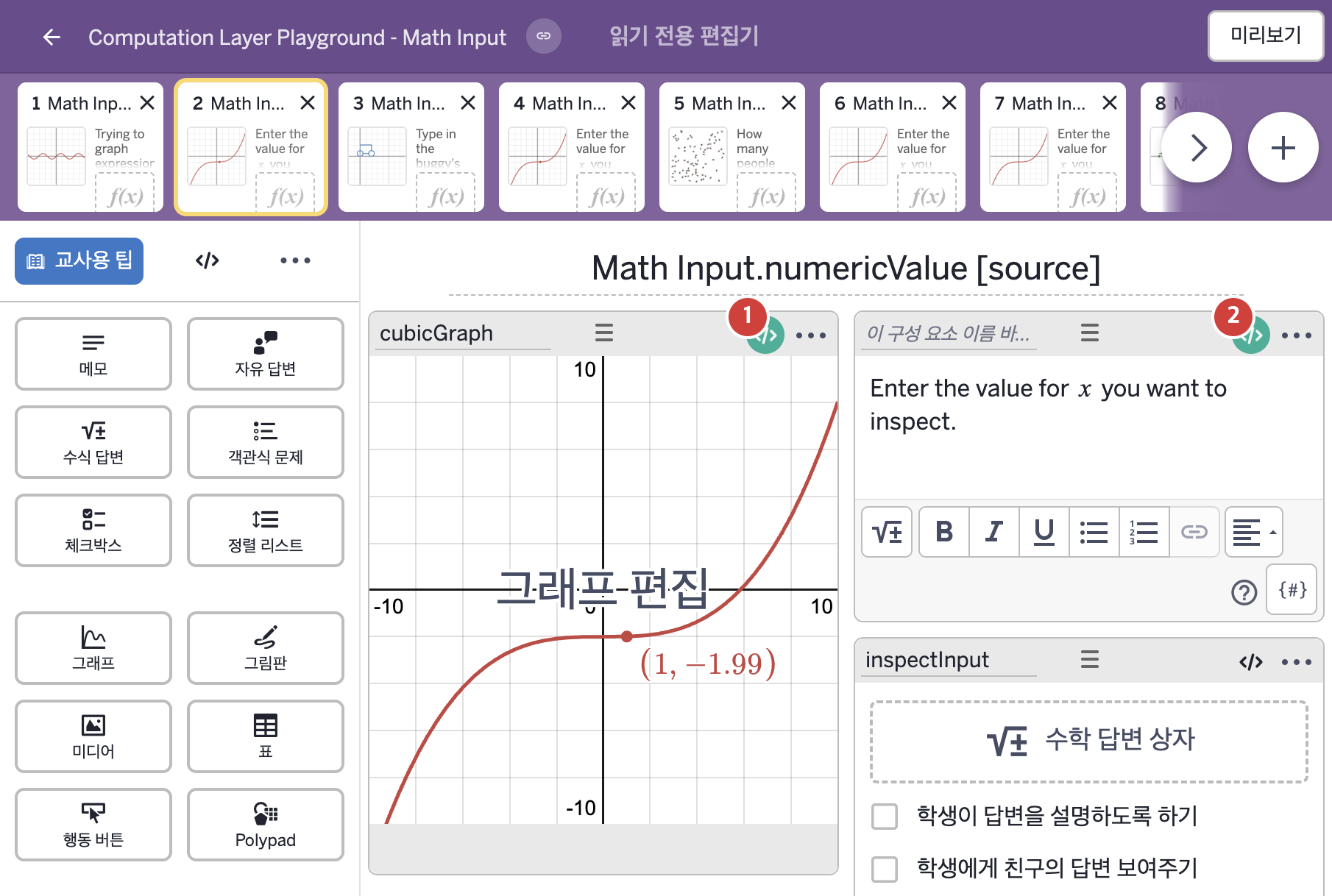
- Enter the value for x you want to inspect.
2. CL이 입력된 곳
| 번호 | 이름 | 종류 | CL 코드 원문, 번역, 설명 |
|---|---|---|---|
| 1 | cubicGraph | 그래프 | # This imports the numeric value of the "inspectInput" expression input and # assigns it to the variable "a" in the graph component. ▷ "inspectInput"이라는 수식 답변의 숫자 값을 가져와 그래프 구성요소의 변수 "a"에 정한다. number("a"): inspectInput.numericValue ▶ 그래프의 변수 a는 수식 답변 inspectInput의 계산한 값( |
| 2 | 레이블 없는 메모 | 메모 | # This is a common design pattern in Desmos activiites where # we'll present the prompt in the content sink and then # attach a feedback variable which checks for different conditions # (in this case, whether or not the x-value will result in a y-value # that's off screen) and displays appropriate feedback. ▷ 이것은 Desmos 활동에서 흔히 쓰는 설계 방식이다. 메모의 content sink에 문제 글을 두고, 여러 조건(여기서는 x 값이 화면 밖의 y 값을 만드는지)을 검사해 알맞은 피드백을 보여 주는 피드백 변수를 붙인다. feedback = when cubicGraph.number("a") < -9.3 or cubicGraph.number("a") > 10 "\n\nYour point is off the screen." otherwise "" ▶ 변수 feedback은 |