홈 › Components › Math Response (수식 답변) › 화면 14
화면 14. Math Input.capture [sink]
원본: Computation Layer 문서(Math Response (수식 답변)) · Try It (원본 화면)
| 화면 번호 | 14 / 28 |
|---|---|
| 문서 항목 설명 (원문) | capturekey: string Sets a variable you want to capture every time the expression input is submitted. (Often times this is the numeric value of the expression input.) Retrieve the history of that variable later using the history source. |
1. 화면 캡처 (빨간 번호 = 아래 표의 번호)
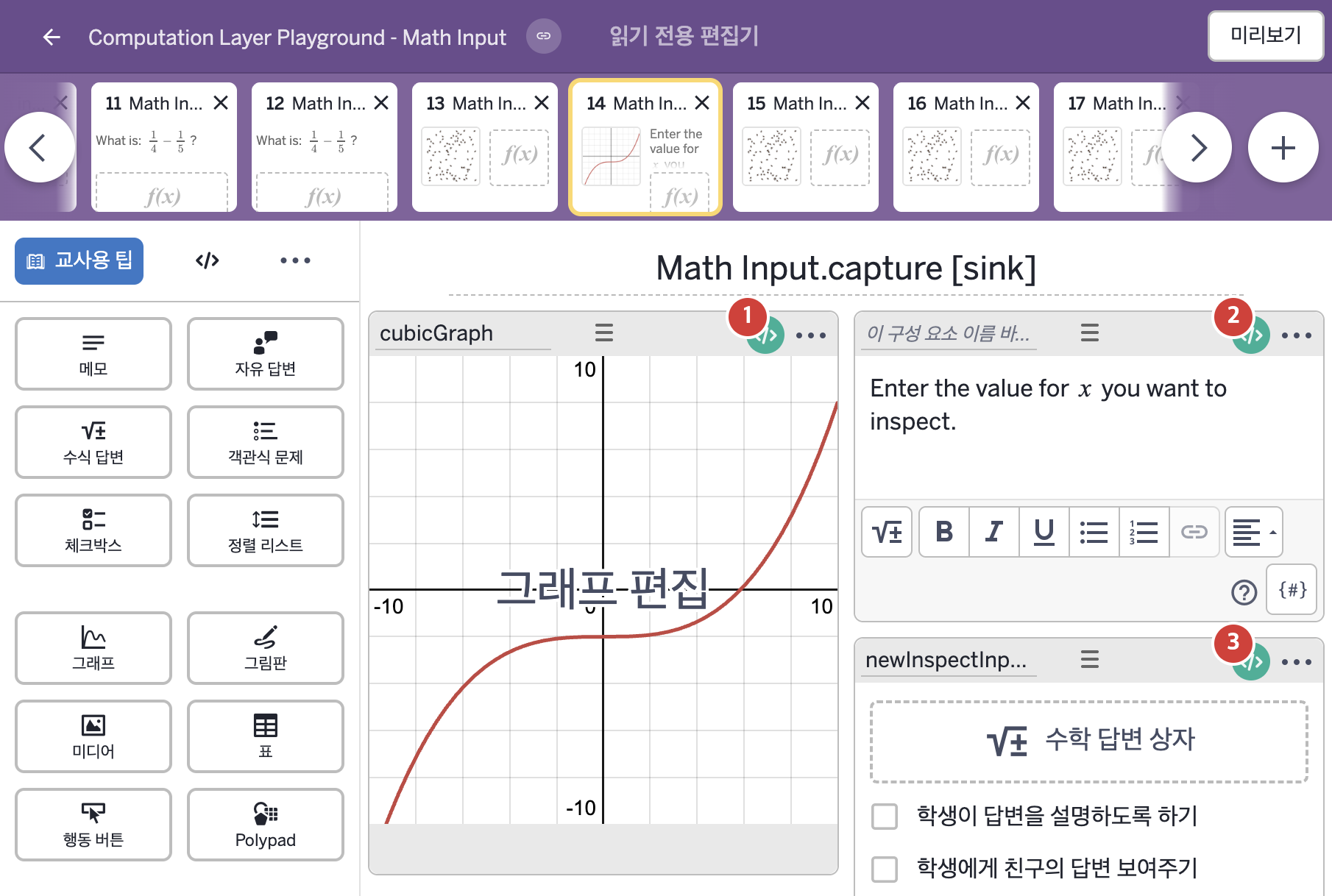
- Enter the value for x you want to inspect.
2. CL이 입력된 곳
| 번호 | 이름 | 종류 | CL 코드 원문, 번역, 설명 |
|---|---|---|---|
| 1 | cubicGraph | 그래프 | # This sink will take all the values captured by the # history sink we set up in the expression input and store # them in a number list called "x_history". We use that in the # calculator to display values along the function. ▷ 이 sink는 수식 답변에 설정한 history로 기록된 모든 값을 가져와 "x_history"라는 숫자배열(numberList)에 저장한다. 계산기에서 이 숫자배열을 써서 함수를 따라 값들을 표시한다. numberList("x_{history}"): newInspectInputFinal.history("xval") ▶ 그래프의 숫자배열 x_{history}는 수식 답변 newInspectInputFinal이 "xval"이라는 이름으로 기록한 값들의 기록 전체( |
| 2 | 레이블 없는 메모 | 메모 | # This is a common design pattern in Desmos activiites where # we'll present the prompt in the content sink and then # attach a feedback variable which checks for different conditions # (in this case, whether or not the x-value will result in a y-value # that's off screen) and displays appropriate feedback. ▷ 이것은 Desmos 활동에서 흔히 쓰는 설계 방식이다. 메모의 content sink에 문제 글을 두고, 여러 조건(여기서는 x 값이 화면 밖의 y 값을 만드는지)을 검사해 알맞은 피드백을 보여 주는 피드백 변수를 붙인다. feedback = ▶ 변수 feedback은 아래 세 갈래 조건( |
| 3 | newInspectInputFinal | 수식 답변 | # We're telling the action button to capture the numericValue of this input # "xval" is a name that capture, lastValue, and history will all share. ▷ 행동 버튼이 이 입력의 numericValue를 기록하도록 한다. "xval"은 capture, lastValue, history가 모두 함께 쓰는 이름이다. capture("xval"): this.numericValue ▶ "xval"이라는 이름으로 기록할 값(capture)은 이 수식 답변의 계산한 값( |