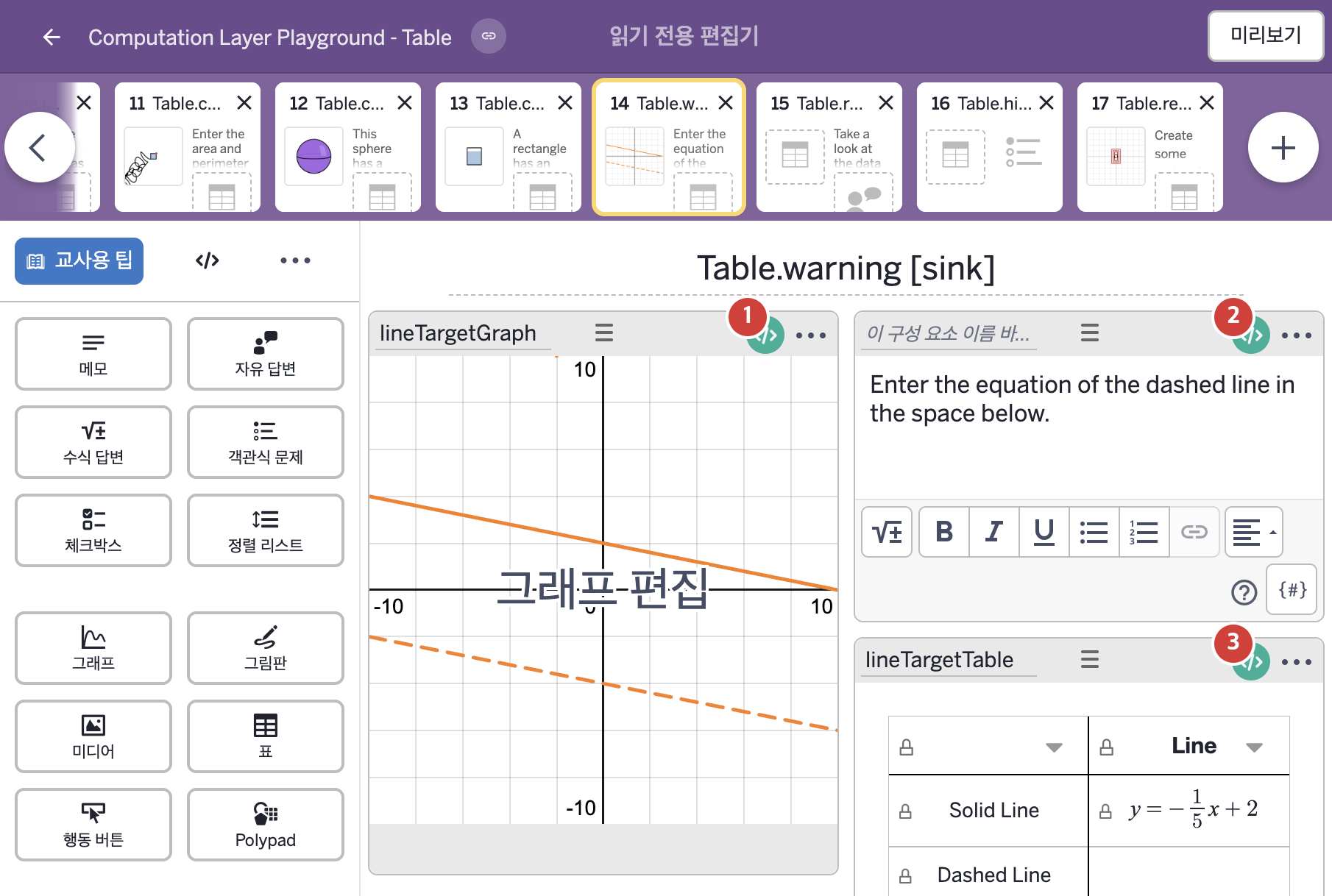
코드 안의 회색 줄은 원문 영어 주석이고, 파란 줄은 그 영어 주석의 번역이며, 연분홍 줄은 코드가 하는 일의 설명이다.
| 번호 | 이름 | 종류 | CL 코드 원문, 번역, 설명 |
|---|
| 1 | lineTargetGraph | 그래프 | # This component is just used to display student work
# in other components. We'll call it "readOnly" so it
# won't affect our determination of correctness.
▷ 이 구성요소는 다른 구성요소에 학생의 작업을 보여 주는 데에만 쓴다. "readOnly"라고 부르므로 정답 판정에 영향을 주지 않는다.
readOnly: true
▶ 그래프의 읽기 전용 여부(readOnly)는 true로 한다.
readOnly는 참이면 화면의 정답 판정에서 이 구성요소를 무시하고, 모든 구성요소의 readOnly가 참이면 대시보드 요약에 대시(-)를 표시한다.
# Get the number of times the table button has been submitted
# and assigns it to the label of a point in the graph.
▷ 표 버튼이 제출된 횟수를 가져와 그래프의 점 라벨에 정한다.
numTries = button.pressCount
▶ 변수 numTries는 행동 버튼이 눌린 횟수(button.pressCount)로 한다.
button.pressCount는 행동 버튼이 눌린 횟수를 알려 준다.
pointLabel("S_core"): "Number of Tries: ${numTries}"
▶ 점 S_core의 라벨(pointLabel)은 "Number of Tries: ${numTries}"로 한다.
pointLabel("이름")은 점의 라벨 글자를 정하며, A=(1,2)처럼 정의된 점에만 적용되고 이름이 점의 이름과 같아야 하며 빈 글자를 주면 라벨이 꺼진다. 값은 "Number of Tries: "(시도 횟수: ) 뒤에 numTries의 값이 이어진 글자이고, ${ }는 글자 안에 변수의 값을 끼워 넣는 표기이다.
# Get the content of a cell in the table and store it in
# a variable called "myEquation".
▷ 표의 한 셀의 내용을 가져와 "myEquation"이라는 변수에 저장한다.
myEquation = lineTargetTable.cellContent(2,2)
▶ 변수 myEquation은 표 lineTargetTable의 2행 2열 셀에 입력된 내용(lineTargetTable.cellContent(2,2))으로 한다.
cellContent(행, 열)은 행 번호와 열 번호로 셀의 내용을 가져오고, 행 번호 1은 머리글 바로 아래 첫 행이다.
# Use the function xyLine to convert "myEquation" to a
# line object.
▷ 함수 xyLine을 써서 "myEquation"을 직선 객체로 바꾼다.
myLine = xyLine(myEquation)
▶ 변수 myLine은 myEquation으로 만든 직선 객체(xyLine(myEquation))로 한다.
xyLine(…)은 주어진 latex 글자로 새 xyLine 객체(직선)를 만드는 함수이다.
# Use the function "slopeOfLine" and "yInterceptOfLine"
# to get those properties of the line and assign
# them to calculator variables.
▷ 함수 "slopeOfLine"과 "yInterceptOfLine"을 써서 직선의 그 성질들을 가져와 계산기 변수에 정한다.
number("m_3"): myLine.slope
▶ 그래프의 변수 m_3은 myLine의 기울기(myLine.slope)로 한다.
number("이름")은 그래핑 계산기 안의 변수 값을 정하고, myLine.slope는 xyLine 객체의 기울기를 돌려준다.
number("b_3"): myLine.yIntercept
▶ 그래프의 변수 b_3은 myLine의 y절편(myLine.yIntercept)으로 한다.
myLine.yIntercept는 xyLine 객체의 y절편을 돌려준다.
# Get the time since the table button was submitted.
# We use that in this graph component to "draw"
# the student's line on the screen.
▷ 표 버튼이 제출된 뒤 지난 시간을 가져온다. 이 그래프 구성요소에서 이 값을 이용해 학생의 직선을 화면에 "그린다".
number("t"): button.timeSincePress()
▶ 그래프의 변수 t는 행동 버튼 button을 누른 뒤 지난 시간(button.timeSincePress())으로 한다.
number("이름")은 그래핑 계산기 안의 변수 값을 정한다. timeSincePress()는 버튼을 누른 뒤 지난 시간(초)을 알려 주며, 재설정 링크를 누르거나 같은 화면의 구성요소를 선택하거나 편집하면 0으로 돌아가고 기본으로 10초까지 센다.
|
| 2 | 레이블 없는 메모 | 메모 | # Gets information about the target line and the student's
# line and checks to make sure that information agrees.
▷ 목표 직선과 학생의 직선에 대한 정보를 가져와 그 정보가 일치하는지 확인한다.
targetSlope = lineTargetGraph.number("m_2")
▶ 변수 targetSlope는 그래프 lineTargetGraph의 변수 m_2의 숫자 값(lineTargetGraph.number("m_2"))으로 한다.
lineTargetGraph.number("이름")은 그래프 구성요소 lineTargetGraph의 계산기의 변수 값을 알려 준다.
targetIntercept = lineTargetGraph.number("b_2")
▶ 변수 targetIntercept는 그래프 lineTargetGraph의 변수 b_2의 숫자 값(lineTargetGraph.number("b_2"))으로 한다.
studentSlope = lineTargetGraph.number("m_3")
▶ 변수 studentSlope는 그래프 lineTargetGraph의 변수 m_3의 숫자 값(lineTargetGraph.number("m_3"))으로 한다.
m_3은 이 화면에서 학생이 입력한 직선의 기울기이다.
studentIntercept = lineTargetGraph.number("b_3")
▶ 변수 studentIntercept는 그래프 lineTargetGraph의 변수 b_3의 숫자 값(lineTargetGraph.number("b_3"))으로 한다.
b_3은 학생이 입력한 직선의 y절편이다.
# We're simultaneously assigning correct to a variable AND a sink in
# this case so that we can REFER to the variable from other components
# instead of RE-CREATING it.
▷ 이 경우에는 correct를 변수와 sink에 동시에 정한다. 다른 구성요소에서 다시 만들지 않고 변수를 참조할 수 있게 하기 위해서이다.
isCorrect = targetIntercept = studentIntercept and targetSlope = studentSlope
▶ 변수 isCorrect는 targetIntercept와 studentIntercept가 같고 targetSlope와 studentSlope가 같으면 참으로 한다.
줄 맨 앞의 isCorrect =는 변수를 정하고, 그 뒤의 두 =는 비교이다. and는 둘 다 참이어야 참이다.
# This defines the conditions on which we'll show some feedback.
# In the first line we check to make sure the table has been submitted
# AND that the equation is correct. (We have already defined correctness
# in the "lineTargetTable" component, so we head to that "script" to
# get it. The second line checks to see if the table has been submitted
# AND that it is incorrect.
▷ 어떤 조건에서 피드백을 보여 줄지 정한다. 첫 줄에서는 표가 제출되었고 방정식이 맞는지를 확인한다. (정답 여부는 이미 "lineTargetTable" 구성요소에서 정의했으므로 그곳의 "script"로 가서 가져온다.) 둘째 줄에서는 표가 제출되었고 틀렸는지를 확인한다.
feedback =
when button.timeSincePress > 0 and isCorrect "
That line is correct. Continue to the next screen."
when button.timeSincePress > 0 "
That line isn't correct. Try again."
otherwise ""
▶ 변수 feedback은 button.timeSincePress가 0보다 크고 isCorrect가 참이면 "That line is correct. Continue to the next screen."(그 직선은 맞다. 다음 화면으로 넘어가시오.), 그렇지 않고 button.timeSincePress가 0보다 크면 "That line isn't correct. Try again."(그 직선은 맞지 않다. 다시 해 보시오.), 그 밖에는 빈 글자로 한다.
두 글자 값("That line is correct. …", "That line isn't correct. …")은 모두 큰따옴표 바로 뒤에서 줄이 바뀌고 빈 줄 하나를 둔 다음 문장이 이어진다. and는 둘 다 참이어야 참이고, when은 조건을 차례로 확인해 처음 맞는 값을 쓴다.
# Inject that feedback into the content of the note.
▷ 그 피드백을 메모의 내용에 끼워 넣는다.
content:
"Enter the equation of the dashed line in the space below.${feedback}"
▶ 메모의 내용(content)은 "Enter the equation of the dashed line in the space below.${feedback}"(아래 칸에 점선의 방정식을 입력하시오.) 뒤에 feedback의 값이 이어진 글자로 한다.
${ }는 글자 안에 변수의 값을 끼워 넣는 표기이다. content는 메모에 직접 적은 글을 덮어쓴다.
|
| 3 | lineTargetTable | 표 | # Throw a warning when students haven't entered a defined
# linear equation in the table.
▷ 학생이 표에 정의된 일차방정식을 입력하지 않았을 때 경고를 띄운다.
warning:
when not(isDefined(xyLine(lineTargetTable.cellContent(2,2)))) "You have to enter the equation of a line."
otherwise ""
▶ 표의 경고(warning)는 isDefined(xyLine(lineTargetTable.cellContent(2,2)))가 거짓이면, 즉 2행 2열 셀의 내용으로 직선을 만들 수 없으면 "You have to enter the equation of a line."(직선의 방정식을 입력해야 한다.), 그렇지 않으면 빈 글자로 한다.
warning은 교사 대시보드에서 경고 아이콘에 붙는 툴팁 글자를 정한다. isDefined(…)는 값이 정의되어 있는지를 참/거짓으로 돌려주고, xyLine(…)은 latex 글자로 직선 객체를 만들며, not(…)은 참/거짓을 뒤집는다. when은 조건을 차례로 확인해 처음 맞는 값을 쓴다.
|